
Master Managing User Roles and Permissions with a CMS Solution
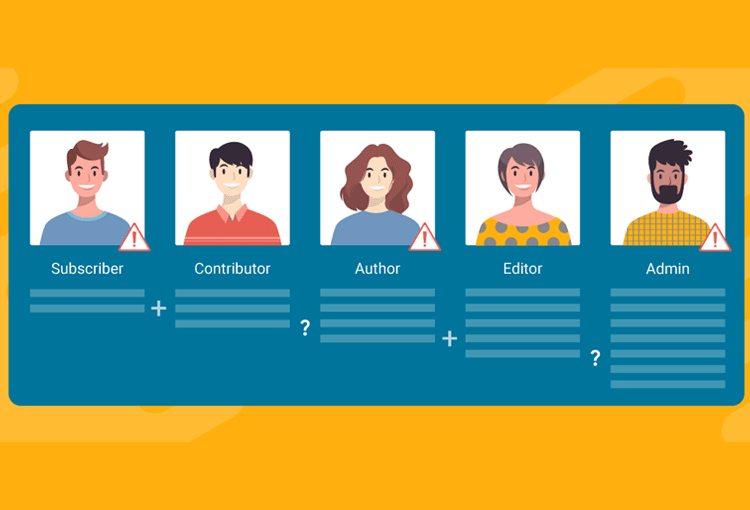
Managing User Roles and Permissions in a CMS Solution
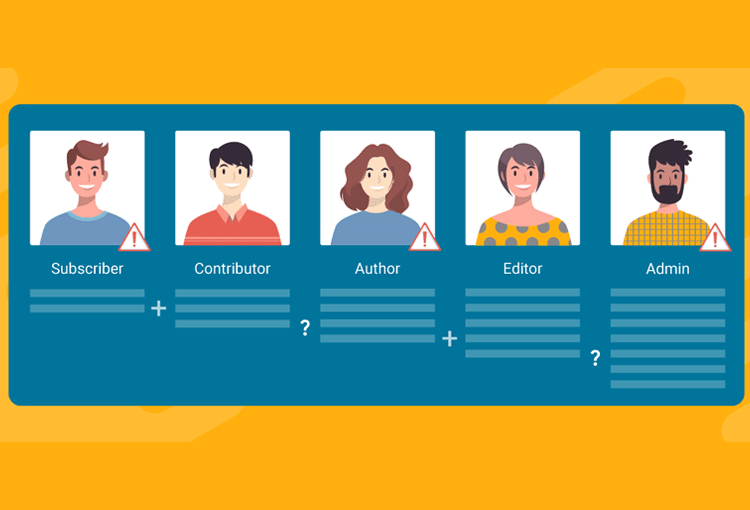
Introduction to Managing User Roles and Permissions in a CMS Solution
A content management system (CMS) is a powerful way to manage digital content for your website, blog, or online platform. It enables you to create, publish, and distribute content efficiently. However, managing user roles and permissions within a CMS can be a complex task.
Properly managing user roles and permissions ensures content security and that only the right people can access specific features. This guide explores the fundamentals of managing user roles and permissions in a CMS, including defining access levels, assigning roles, and setting up workflows.
Defining User Roles and Access Levels
Clearly defining each user role and their access level is essential. This allows control over who can view, edit, or delete content on your website. Each role should include guidelines outlining responsibilities and access limitations.
Granular access management means different permission sets can be assigned to users or groups for specific areas. For example, an administrator can create and delete content, while a guest may only view content.
Properly configured access levels protect your site from accidental data loss or unauthorized access. Establishing a clear hierarchy from the beginning simplifies permission management.
Assigning User Roles and Permissions
Assigning roles is critical for controlling access and maintaining security. Each role has specific privileges, such as full access for administrators and limited access for regular users.
After defining roles, assign the appropriate permissions based on access needs. For instance, editors may need rights to create and modify content, while contributors may only submit drafts.
Regularly reviewing and updating roles ensures correct access levels and helps reduce security risks.
Understanding the Role of Group Management
Group management is essential for organizing users and applying access controls efficiently. Groups define roles, control permissions, and streamline access to features or content.
Examples include a “Content Creator” group with editing permissions or an “Administrator” group with full access. Using groups avoids the need to configure permissions individually.
Grouping users logically allows bulk access changes and improves management scalability across large teams or organizations.
Understanding the Limitations of each User Role
Each user role has predefined limitations. Administrators can modify CMS settings, while editors may lack access to manage users. Viewers may only see content, not edit it.
Understanding these limitations ensures secure configurations and prevents unauthorized actions. This awareness also helps align roles with user responsibilities.
Setting Up Restrictions in Groups
Group-based restrictions limit access to confidential or sensitive content. Administrators can define access rules for each group or user.
These rules may apply globally or to specific content types. Sub-groups can further refine access control, and approval workflows can restrict publishing rights.
Thorough testing is vital to prevent permission conflicts and unintended access.
Creating and Setting Access Control for Different Content Types
Access control should vary based on content type. For instance, some roles may edit blog posts but only view internal reports.
Use your CMS’s built-in access control settings to manage read, write, and delete rights across users and groups. Maintain a clear list of roles and their assigned permissions.
Review this list regularly to ensure continued compliance and security.
Creating and Managing Workflows for Access Control
Workflows define the process of assigning, reviewing, and approving access changes. A proper workflow ensures permissions align with job duties.
For example, changes by one team member can trigger notifications for approval by another. This process increases transparency and reduces unauthorized access risks.
Regularly audit and update workflows to reflect changes in team structure or system features.
Understanding the Impact of Access Control on Auditing
Access control directly affects auditing capabilities. Restricting access by role allows for better tracking of who performed which actions within the system.
Auditing identifies misuse, security breaches, and unauthorized access attempts. While access control enhances accountability, it must be supported by consistent monitoring.
Documenting User Roles and Permissions
Documentation is crucial for role clarity and accountability. Maintain a record of all user roles, their descriptions, and associated permissions.
This documentation serves as a reference point, audit trail, and training guide for future role adjustments.
Clear documentation ensures access levels align with responsibilities and helps prevent permission creep.
Employing Security Measures to Protect Access Control
To protect access control, implement layered security strategies. Each user role should meet strict verification criteria before gaining access.
Apply the principle of least privilege—users only receive the access necessary to perform their role. Use encryption, strong passwords, and multi-factor authentication.
Regular audits help identify misuse, gaps, and outdated roles, reinforcing your CMS’s overall security posture.
Best Practices for Implementing User Roles and Permissions with a CMS Solution
Follow these best practices for secure and effective access management:
- Define user roles and access levels based on responsibilities.
- Use group restrictions to streamline permission assignments.
- Create flexible workflows for controlled access changes.
- Document all roles and permissions to maintain visibility.
Implementing these practices ensures efficient and secure CMS usage, minimizing risks while enabling productivity.
Related Reading
- Ensure User Safety: The Key to Content Moderation
- User-Generated Content (UGC) - Harness the Power of UGC
- Master CMS Performance with Optimization Strategies
Planning a content platform?
Headless, traditional, or custom — we help teams pick and build the CMS architecture that fits how they actually work.
CMS strategy, architecture, and implementation.
Discuss your CMSA technical conversation, not a sales pitch.