
Unlock the Possibilities of Customizable CMS Templates and Themes
Introduction to Customizable CMS Templates and Themes
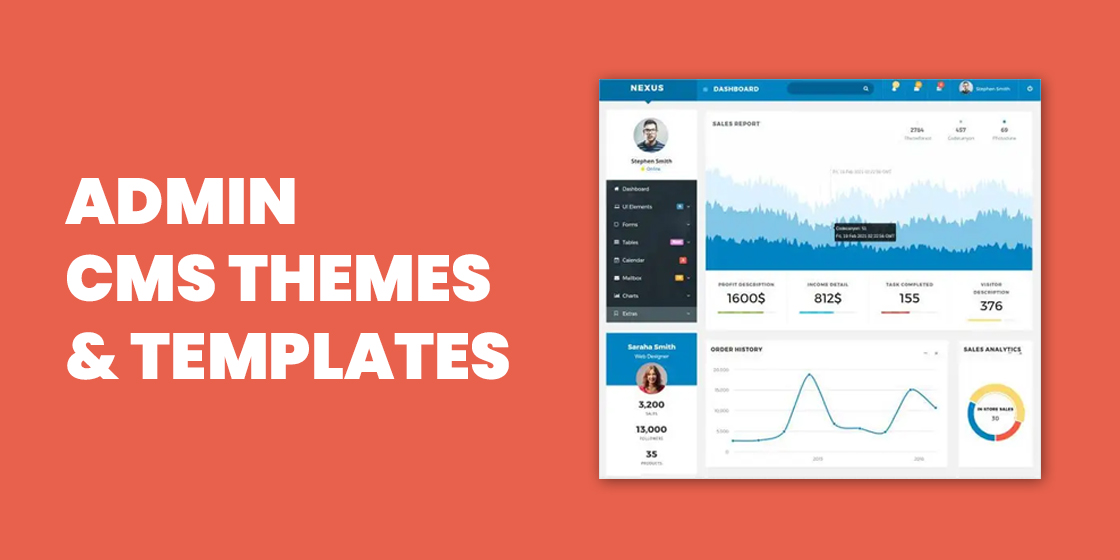
Customizable templates and themes in a content management system (CMS) offer great flexibility when building a website. They allow you to control the layout of your pages and access features and plugins that improve usability. With these templates, you can easily create a design that suits your specific goals.
Custom themes work well for personal blogs and sites, while CMS templates are ideal for building professional websites with a structured layout. Both options let you make quick adjustments without starting from scratch. This saves time and makes it easier to refine your site’s look and content.
Customizing your CMS templates or themes lets you align your website with your brand. You can choose from various designs, fonts, and color schemes to create the perfect experience for your audience. You also have the flexibility to highlight important content on your pages.
Another benefit of customization is improved load times. Optimized templates help ensure your pages load fast, offering visitors a smoother experience.
Advantages of Using a CMS
A content management system (CMS) offers several advantages for building and managing your website:
- Better Organization: A CMS organizes your content into manageable sections, making it easier for users to find what they need.
- Improved Security: Most CMS platforms offer built-in security features like authentication and access control to help protect your site.
- Simple Content Management: You can easily add and edit content without needing coding skills, which keeps your website up to date.
- Multilingual Support: Many CMSs allow you to manage your site in multiple languages with ease.
- Design Flexibility: With access to themes, templates, and plugins, you can tailor your site’s look and features as needed.
In short, a CMS simplifies website management, enhances security, and offers a wide range of customization options.
Understanding the Basics of Template Design for CMS Platforms
Designing a CMS template may seem challenging, but understanding a few basics makes it easier to build a professional-looking site.
Templates are pre-designed HTML files and page layouts that define your website’s appearance. They include fonts, colors, logos, headers, footers, and other design elements. CMS platforms like WordPress or Joomla use these templates to help you quickly change the site’s look without building each page manually.
Key things to consider:
- Learn basic HTML tags and how your CMS uses them.
- Know how to embed media and apply styles using CSS.
- Ensure mobile compatibility by designing for responsive layouts.
- Focus on usability, keeping menus and layouts simple and clear.
By applying these principles, you can create templates that look great and work well on all devices.
How to Set Up a Theme for Your Content Management System
Setting up a theme that matches your style can greatly enhance your website. Follow these steps to get started:
- Choose a Theme: Browse both free and paid options. Select one that fits your goals and download it.
- Install the Theme: Installation methods vary by platform. Follow the theme’s setup instructions.
- Customize Appearance: Adjust fonts, colors, and backgrounds. Add widgets or plugins to extend functionality.
- Test the Theme: Check its performance on different devices and browsers to ensure everything works smoothly.
With the right theme and customizations, your website will reflect your brand and function well for your audience.
Configuring a Custom Theme in WordPress
WordPress is widely used for its ease of customization. To set up a custom theme, follow these steps:
- Select a Theme: Browse the WordPress Theme Directory and pick one that suits your website.
- Customize Settings: Adjust layouts, colors, and fonts in the theme customizer.
- Create a Child Theme: Make a child theme to edit styles and layout without affecting the original code.
- Upload and Activate: Upload the theme via FTP or dashboard and activate it.
- Install Plugins: Use plugins to add features like contact forms or SEO tools.
Custom themes give you full control over your site’s look and functionality.
Understanding Templates and Widgets in Joomla
Joomla is another CMS platform that uses templates and widgets to design websites. Here’s how they work:
- Templates: These determine your site’s layout, colors, and structure. They are built using HTML and CSS.
- Widgets: These are pre-built code elements, such as calendars or contact forms, that enhance your site’s functionality.
Joomla’s Template Manager lets you create, modify, and upload custom templates. You can also insert widgets to add interactive features. Understanding how these elements work together will help you design a professional and functional site.
Creating New Template Designs with Drupal
Drupal offers advanced customization for creating template designs. Here’s how to create custom templates in Drupal:
- Select a Theme: Choose a base theme that matches your vision.
- Use Drag-and-Drop Tools: Add elements like images, buttons, and text boxes.
- Add Custom Code: Use HTML and CSS for more control over layout and style.
- Style the Template: Adjust fonts, colors, and backgrounds to suit your brand.
- Preview and Apply: Test the template in your browser and apply it once you’re satisfied.
Drupal’s flexibility allows you to create unique, professional designs tailored to your website’s goals.
Optimizing Your Site for Faster Load Times
Fast-loading websites offer better user experiences. Here are tips for improving page load speed:
Minimize HTTP Requests
Reduce the number of files your site needs to load by combining CSS or JavaScript files and removing unused scripts.
Use Compression
Enable Gzip compression to reduce file sizes and speed up page loads.
Optimize Images
Use appropriate image formats and compress them before uploading to minimize size without sacrificing quality.
Use a Content Delivery Network (CDN)
A CDN delivers your site content from servers closest to the user, reducing latency.
Cache Static Content
Cache HTML, images, and scripts to reduce repeated server requests and speed up repeat visits.
Tips for Adding Third-Party Plugins and Integrations
Third-party plugins can expand your CMS’s capabilities. Here’s how to add them safely:
- WordPress: Use the built-in plugin directory to search and install plugins.
- Joomla: Access the Extensions Directory and install plugins via the admin screen.
- Drupal: Follow each plugin’s instructions carefully during installation.
- External Services: Integrate email opt-ins, CRMs, or analytics by embedding provided code.
- Check Compatibility: Review plugin documentation and user feedback to avoid conflicts.
Plugins and integrations are useful, but always test them thoroughly before launching your website.
Troubleshooting Tips for Common Errors
Even with the best templates, errors can occur. Use these tips to fix common problems:
Check for Updates
Update your CMS and plugins regularly to avoid bugs and compatibility issues.
Review Logs and Reports
Use log files to locate the source of errors in your code or server configuration.
Try Other Browsers
Test your site in multiple browsers to rule out browser-specific issues.
Check for Plugin Conflicts
Disable plugins one by one to identify any that may be causing problems.
Inspect Source Code
Look through your site’s code for syntax errors or missing tags.
Contact Support
If you can’t solve the problem, reach out to your CMS’s support team for help.
Following these steps will help you troubleshoot and resolve issues quickly, keeping your website running smoothly.
Related Reading
- Unlock the Possibilities of AR and VR in Content Management
- Personalize Your CMS: Unlock Tailored Experiences for All Users
- Unlock Benefits of Content Previews and Approvals for Your CMS
Planning a content platform?
Headless, traditional, or custom — we help teams pick and build the CMS architecture that fits how they actually work.
CMS strategy, architecture, and implementation.
Discuss your CMSA technical conversation, not a sales pitch.